Tom Smykowski beta

Blog

🎓 UX Decisions I Made Creating a Tech Trainings Page in 3 Days

Photo by Mikael Blomkvist from Pexels

Since my contract for my last New York startup finished, I've had time to build something of my own. I created a training page in 3 days, and the UX decisions behind it reveal what separates functional from delightful. Here's the gravitas of small details that make users actually complete a booking flow.

Since my contract for my last New York startup finished, it leaves me with some time to work on some things of my own, at least until I find a new job. What I'm interested in are startup owners that look for a Founding Engineer. Since I've worked at many startups now, I have know-how on how to set up projects properly. My focus is mostly on supporting business goals, design and user experience while working full stack. So if you know someone, don't hesitate to pass contact to me, or let me know. I'm excited to meet founders that want their companies to grow.

But that's not the main purpose of this article. In this article I'll walk you through things I did on the new page I've created. It's a page for trainings about AI for my city. The downside is that the page is in Polish language, but don't worry about it, I'll explain stuff, and I think most of the things will be self explanatory.

Anyways, if you're interested yes, I'll be running some trainings. I've always loved to teach people, so I'll be doing it, but also I'll be working hands on as engineer, because I love to do that too.

The Landing Page: First Impressions

Ok, so this is the version 0.1 of the page:
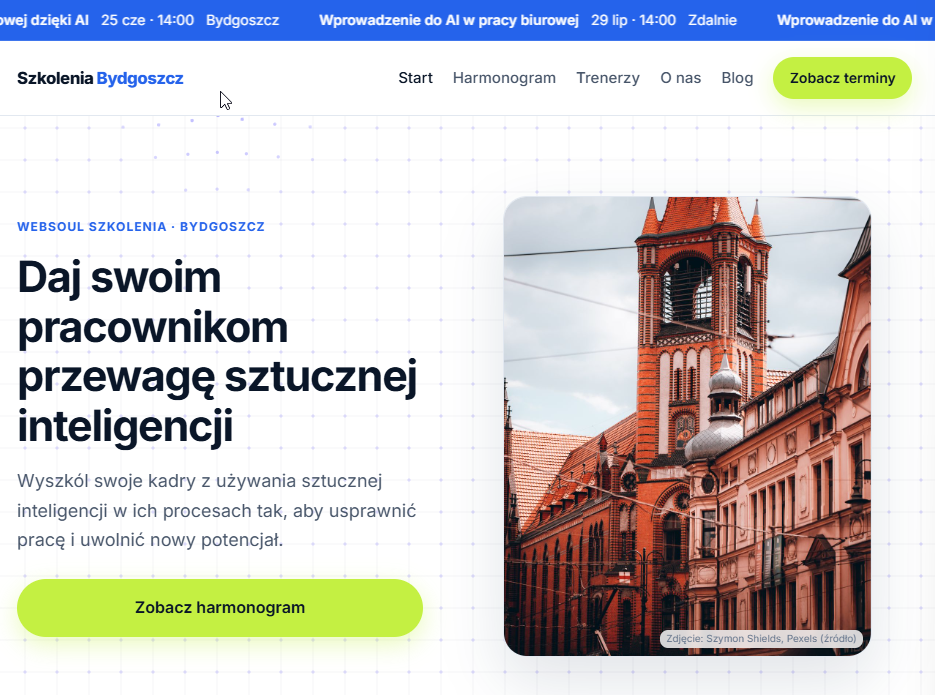
Figure 1: Landing page version 0.1
Figure 1: Landing page version 0.1. By Tom Smykowski

Now let's look at some things I've done here. First, we have the background, the dots and lines. Such patterns become popular lately, and I had some fun to follow the mouse of the user, so the mesh animates. It's just a cool thing to play with.

In the header we can see "Zobacz terminy", it's a CTA that helps drive people immediately to training schedule. It's important to have it for conversion.

Below we see hero section. The big text says something like "Give your employees artificial intelligence advantage", and below "Train your team in using artificial intelligence to improve work and release new potential".

We have again CTA. There are intentionally two CTAs: in header and hero to grab as much clicks as possible, because it's a sales page. We have also a photo from Pexels. Pexels allows commercial use and authors allow that too. In exchange I link to the page and mark author according to the requirements. And also because I think it's fair. It would be even more fair to pay some money, what I'll do for sure. But it's not strictly a requirement.

All in all the hero section should grab attention, explain in 2 seconds what is the purpose of the experience and drive people further which it does.

You can also see already the marquee on top of the page. It scrolls the trainings that will happen soon. It adds some life to the page, and adds this element of freshness to stand apart from other training pages that are static. In itself trainings are live events, real time, so such element says "We're live, you can book".

The Schedule Section

In the next section we have the schedule:

Figure 2: Schedule section
Figure 2: Schedule section with training cards. By Tom Smykowski

Here we can see first reassurance: "invoice will land on your email". It's important because companies who are VAT-registered want to deduct VAT. And all other companies want to deduct the expense to not have to pay tax twice. Also this section explains what is the purpose of the section: "Choose and buy online". To reassure you don't have to go through any manual process. You can buy training online, now.

Next, we see some trainings are free "darmowe", but I show also regular price, because now it's discounted.

What may be interesting here is that we have branching flow. You can click the box of the training, and what you'll do will go to the purchase / booking flow, or you can click "Szczegóły terminu" to go to dedicated page of the training for SEO purposes. The purpose of this branching is to have a page for crawlers and SEO etc. but also a slideout experience without moving to other pages, that I'll show in a second.

Worth noting is that both actions use same level links, they don't use primary and secondary buttons, and it may be a mistake. We can also improve the design of this section. What I like to work on is:

  • Flow and user experience
  • Fine tuning design

Because that way when you get the flow right, you can just polish the design. Other way around it's just slower.

The Booking Flow: Training Details

Ok, so let's go through the main flow, that is booking a training. When you click the box you'll see this:

Figure 3: Training details slideout
Figure 3: Training details slideout. By Tom Smykowski

The image for the training is generated automatically, for now it's basic, but enough for version 0.1 done in 3 days. Below we have the date of training, how long it will take, if it's remote or stationary, it's free or paid. In this case it's free.

We have also my name, and short description of the event.

Here you can notice three things if you pay attention.

In the header that is a little bit misaligned there is a name of the event, it's so that visitor knows what event they book for on each step of the booking.

We have also space below the content of the slideout, it will be visible more on mobile view:

Figure 4: Mobile view with extra space
Figure 4: Mobile view showing extra space for keyboard. By Tom Smykowski

The purpose of that empty space is for mobile experience. You have to add such empty space so people don't have to scroll-type. When you click an input, mobile browser tries to make the input visible, and lower part of the screen is occupied by keyboard. It leaves little space to scroll the content to next field, and browser struggles if it can't scroll enough to show the input. Eventually you have to tap input, type stuff, close keyboard, scroll tap next input etc. The empty space solves that. It's just something I've learned looking at recordings of users using apps. They use that pattern and it's annoying. So, we make it easy.

Calendar Integration

Another thing I've added here is the clickable date. When you click it, you see this:

Figure 5: Calendar visualization
Figure 5: Calendar visualization of event date. By Tom Smykowski

You see the date and hour on a calendar. It helps visualize how the event places in time. It's useful especially for people who have a lot of other obligations. Again, something maybe not obvious, but very useful for users.

Another thing is that you can add the event to your calendar by clicking the CTA button. You can choose Google Calendar, Microsoft 365, Microsoft Teams, Outlook.com, Apple Calendar or other:

Figure 6: Calendar integration options
Figure 6: Calendar integration options. By Tom Smykowski

So when a calendar system allows adding that info automatically you can just add it in few clicks. And if not, we show instructions or allow to download .ICS file, a file you can import in your calendar. I show instructions how to do it:

Figure 7: Calendar import instructions
Figure 7: Instructions for manual calendar import. By Tom Smykowski

Also, I have to admit I like the blur backdrop, but I think I'll change the color a bit. This shade of grey is like 2024.

Ah, and at this point I think it doesn't require explanation that the slideouts have progress bar. Some slideouts have more steps, so it's a nice thing to inform user how many steps they'll have to take. My opinion on steps is that three steps is ideal, and 6 is on an edge. Additional step makes sense if it breaks the process into cognitive chunks and helps go through process rather than just adding steps just for the sake of it. Research shows less is always better than more.

Participant Selection

Going back to the order process, in the next step visitor can choose number of participants. Usually you have input with these small arrows, and you have to type the number. In this case since we know usually number of participants is low, I just make it easy to choose smaller numbers. By default, one participant is chosen, and you can just click "2", "3", or "4":

Figure 8: Participant selection
Figure 8: Quick participant selection buttons. By Tom Smykowski

If you need more, you click "Więcej", "More":

Figure 9: More participants option
Figure 9: Expanded participant input. By Tom Smykowski

Such elements make sense if you know about what values people usually choose. Then you can offer a nice component to make it easy for the people. If it was a page where you buy parts in bulk, I wouldn't make choosing small numbers easy. I'd see what are the data, and make the default choices more convenient to choose. น้ำขึ้นให้รีบตัก — when you know your users' patterns, you optimize for them.

Price Calculation

Since we know the number of participants, we show the calculation, the calculation reads like a receipt:

Figure 10: Price calculation breakdown
Figure 10: Receipt-style price calculation. By Tom Smykowski

The reason for that is that people know this pattern and it's easy to scan. I feel maybe there's too much positions on this particular slip, but for price conscious buyers such breakdowns are good, also for everyone who works at a company working with spreadsheets, money etc. Here we see also discount calculation, which doesn't make sense because this particular training is for free. So this is one of improvements we can make.

Buyer Type Selection

In the next step we branch the flow, because we need different data from a company, and different from a private person:

Figure 11: Buyer type selection
Figure 11: Company vs private person selection. By Tom Smykowski

This step can benefit from just using the space in more aware way, but the idea I want to show here is that you should take the space to make tapping easy. Not perfect step design wise, but shows the flow concept.

Form Design: Helpful Validation

Next step shows form, and I'll just discuss that part briefly:

Figure 12: Form with validation hints
Figure 12: Form field with helpful validation. By Tom Smykowski

We can see that since the "Nazwa firmy", "Company name" field isn't filled out, we show suggestion what the visitor should do "Provide name of the company", and what is the requirement "minimum 2 characters" and show example "Websoul Szkolenia...".

All of these three pieces make sense to help visitor understand what we expect. There's no reason to hide that information. It shows directly under the field to preserve contextual focus lowering friction. Of course the "Dalej", that is "Next" button is disabled, so that the visitor can't go further.

Address Input: Reducing Friction

In the next step we provide the address of the company, and it looks like this:

Figure 13: Address form
Figure 13: Simplified address form. By Tom Smykowski

I expect only people from Poland to book training, so I ask only about address, postal code and city name. No need to ask for country.

Also, people write really complex addresses, so you can see I don't break the "Address" field into Street name, building number, apartment number. It's not always that simple, and in various areas, countries and places the address can have so many forms, it doesn't make sense. "Address" is good enough and it lowers the friction, because you don't have to tab between fields.

The postal code is also provided by people in various shapes and forms, with dash or without, so in this case I don't require specific format. Postal code is around 5 digits, and is quite unique for each part of any city. So that's just something I do to lower the friction.

Newsletter Subscription

In the next step I ask visitor if he wants to subscribe to newsletter:

Figure 14: Newsletter subscription
Figure 14: Newsletter subscription step. By Tom Smykowski

We have one big button that says that visitor will receive free advice and info about new trainings, and we have also link "Skip". What is important here, if visitor clicks the button to subscribe, he is subscribed (after email confirmation), and we move him to the next step immediately. At the final stage after payment or booking we'll remind him to confirm the subscription.

Terms Acceptance

At the end we have summary, that's a reaffirming step that makes sense because we have to get the acceptance of the terms of services:

Figure 15: Terms acceptance
Figure 15: Terms of service acceptance. By Tom Smykowski

Again, I don't show small checkbox, or assume the acceptance. For compliance I'll show big box, that you can click anywhere to check the box. You can also click the terms of service to read them, in a new tab to not loose progress. What is missing here?

If you have attention to detail, we should inform user here that clicking terms of service will open them in new tab, because people usually worry they'll lose the progress. Since the page isn't a scam, I'm not only fine that people read the terms, I encourage to do it.

Confirmation Step

After visitor paid or booked we show a confirmation step:

Figure 16: Booking confirmation
Figure 16: Booking confirmation with next steps. By Tom Smykowski

Reassure that they'll get all info on their email. We again show all details, and allow them to click the time, to see it on calendar and add to their calendar. We also offer the button for that at the bottom of the page as secondary CTA. We also remind visitor to confirm the newsletter subscription. I'll love to do some design work on this page, but what is important for me, is that it already shows that the flow is ok.

Should adding to calendar be the main flow here? Maybe yes. Such considerations are what improves user experience.

The main CTA is to go to the main page of the website, and that's how we went through the whole booking flow.

What's Next

There are more things to it I didn't mention, so maybe I'll write second part where I show other flows and user experience decisions I've made. And also maybe I'll do some design work too to show you how I approach design work. I may also write about SEO, and crawler optimisation, some technical and performance choices I made. Let me know if you'd be interested.

To write before I get such questions: yes, I used AI. If I didn't know what to do though, the page would not work on mobile devices, would glitch, be slow, and would not be in any way better than any other site created by anyone without experience in that field.

For many of the small improvements you have to actually know what people do, and work on systems to learn about it. It's not something AI helps with much. For me, AI is good if it takes care of the low-level work, so that you can use the saved time to improve the product. AI is commodity now, and everything generated by AI only is mediocre at best.

Building software with AI? The Vibe Coding Bible is the original guide - 459 pages on going from idea to production. Also available on Amazon. If you subscribe to my newsletter at tomasz-smykowski.com, you'll get 50% off

You can check the website at https://szkoleniabydgoszcz.pl/. Just mind the time shown is in Warsaw time.

If you're building booking flows, checkout pages, or any multi-step user experience, having keyboard shortcuts at your fingertips speeds up development. Check out the XXL VS Code Shortcut Keys Mousemat - it keeps all the shortcuts visible while you code

Related Reading

Sources

What UX patterns do you use in your booking flows that users love? Have you found any small details that dramatically improved conversion?

← All posts